Processing Cookbook
Install the Sound Library
-
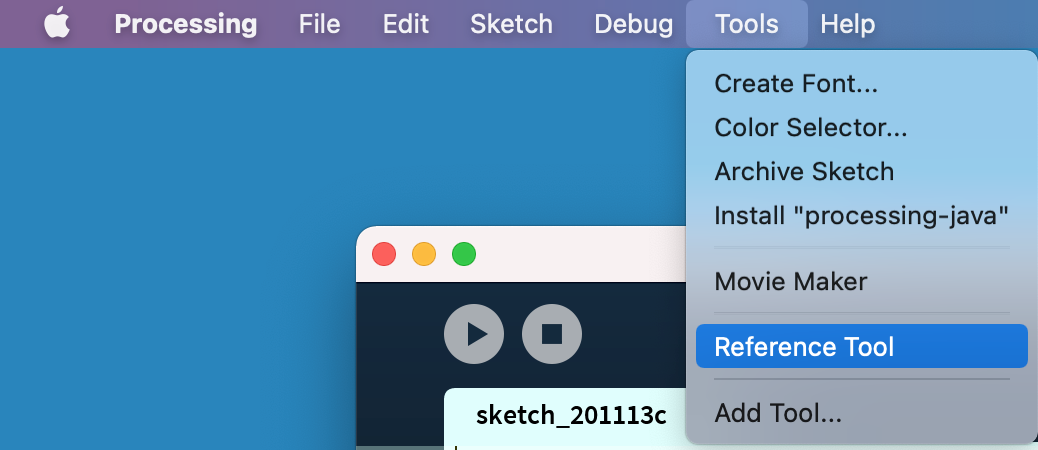
Select Tools > Reference Tool
-
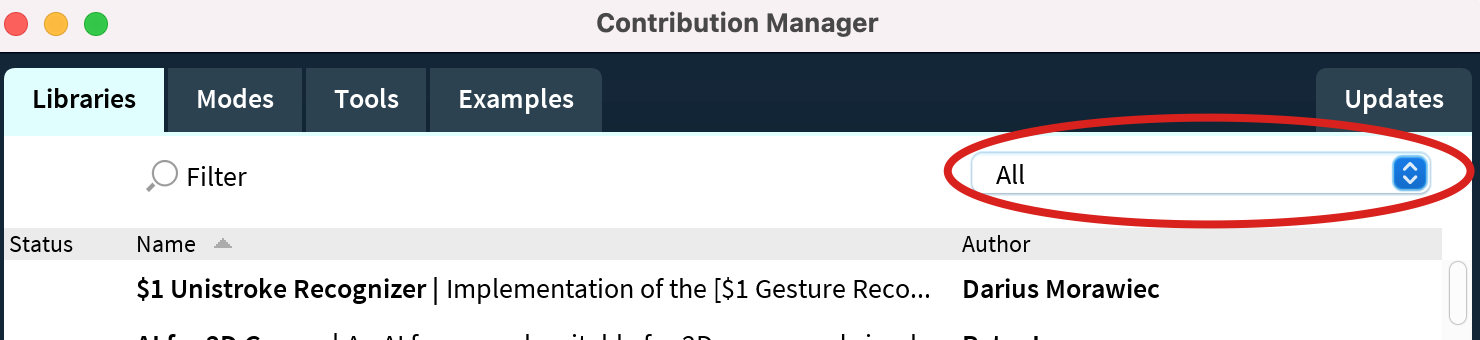
A Contribution Manager window will appear. Click the Libraries tab.

-
Click the All popup menu on the right.
-
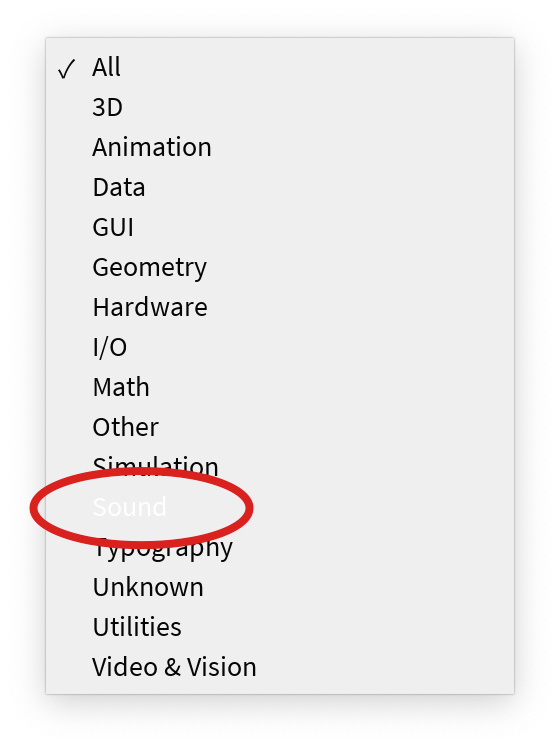
Select the Sound category
-
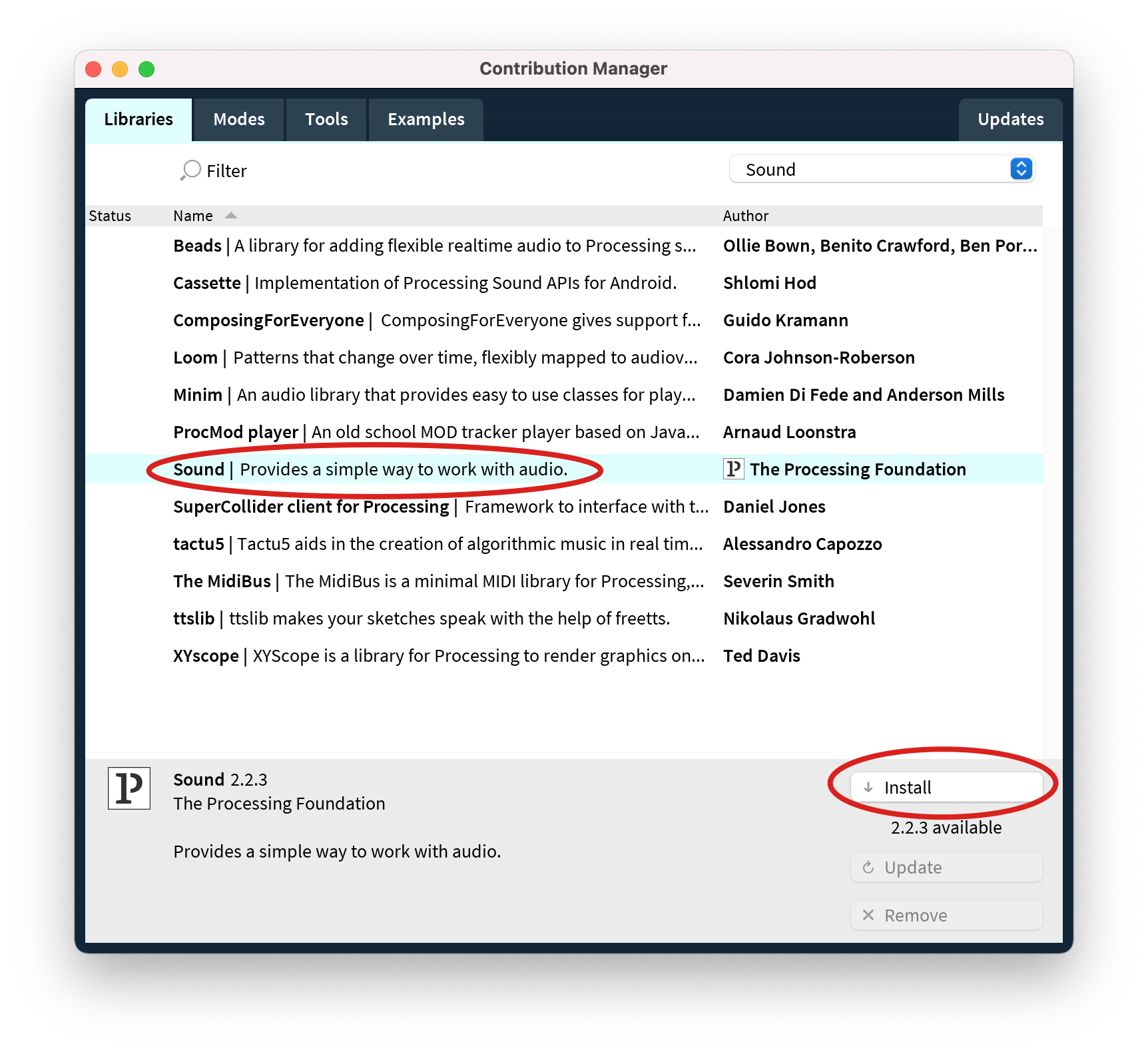
Select the Sound library from the list of libraries, and click Install
Visual Studio Code for Processing
Teaching VS Code to Recognize *.pde Files as Java
Visual Studio Code recognizes *.pde files (files that end in “.pde”) as text files. You can teach it to treat these files as Java. VS Code then displays them with Java syntax coloring (second screenshot below) instead of as plain text (first screenshot). It also allows you to format them (equivalent to Processing’s “Auto Format” menu item), with the addition of another extension (the following recipe).
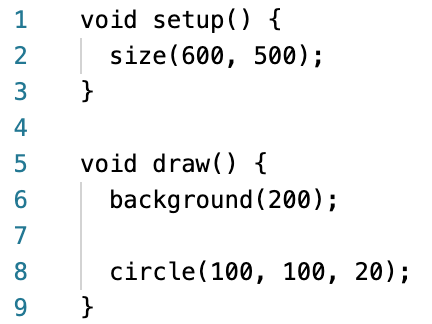
Language Mode: Text. Color Theme: Light.
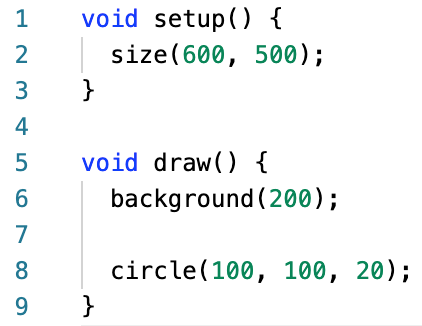
Language Mode: Java. Color Theme: Light.
To teach it to recognize *.pde files as Java, install the Processing Language extension through one of these two mechanisms:
Method 1: Using the link. Click on the link. Click Install. Allow the page to open “Visual Studio Code”. Then follow step 4 below.

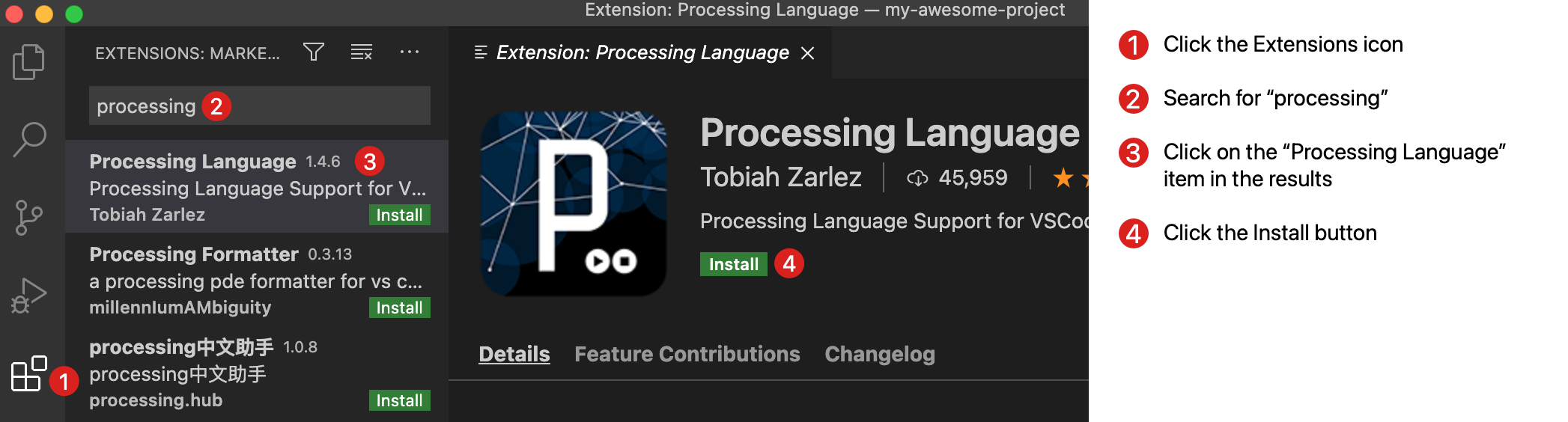
Method 2: Searching for the extension. Open Visual Studio Code. In the Visual Studio Code action bar (on the left), click the Extensions icon. Search for “Processing”. Click the “Processing Language” item in the results. Click on Install.
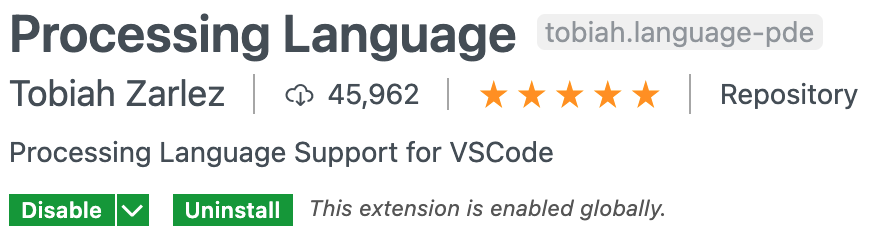
Once the extension is installed, the pane in Visual Studio Code should show the “Disable” and “Uninstall” buttons. (Don’t click on either one! We want to keep it installed.)
Format Processing Sketches
VS Code can be configured to format sketch files. This changes them from the poorly-indented text on the left, to the text on the right. Formatting is triggered by a Format menu item. VS Code can also be configured to format a file every time that it is saved.
Installation:
-
Install the Language Support for Java extension. See the instructions in the “Teaching VS Code to Recognize *.pde Files as Java” for how to install an extension.

-
Download and install the Java Development Kit from https://adoptopenjdk.net. Leave the default version and Java Virtual Machine selected, then click Latest release.
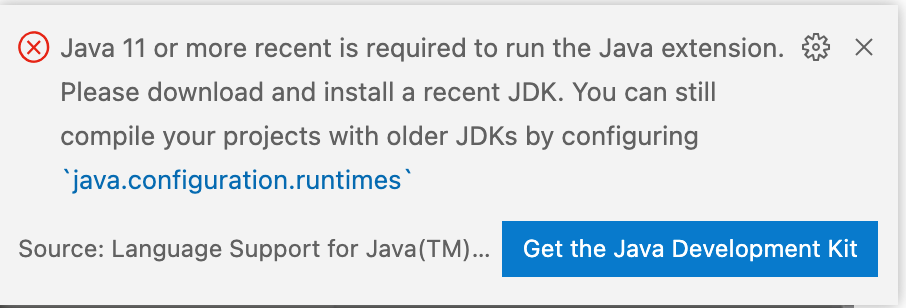
VS Code will prompt to install the JDK, once the Language Support extension is installed.
Usage:
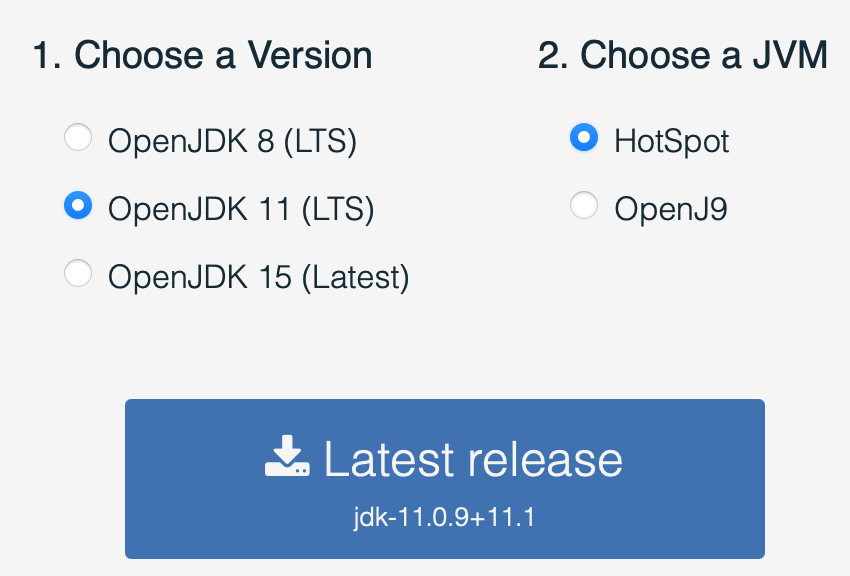
The web site. Click on Latest release.